PPPoker interface guide: lobby, settings and profile
9 min read
The PPPoker interface looks busy at first, but most of what you need sits in three places: the club lobby, the table screen and your profile. This guide walks through each area in the order a new Grand Club member (Club ID 1074072) actually uses them, including how to switch the app language to Russian, Portuguese, Spanish, Uzbek, English or Filipino.
Changing the app language
PPPoker ships with a full interface translation for Russian, Portuguese, Spanish, Uzbek, English and Filipino. Open the main menu from the home screen — the three-line icon in the top corner — and tap Settings, then Language. The change applies immediately to menus, lobby labels and table prompts without restarting the app.
If you installed the app in a language you do not read, the path is the same: the gear icon is always in Settings regardless of locale. On Android you can also override the app language in system settings, but changing it inside PPPoker is faster and does not affect other apps on your phone.
Grand Club publishes guides in all six languages, so matching the app to your preferred reading language makes cashier messages and in-app labels easier to follow. Your username and chat at the table stay whatever you typed; only the interface chrome changes.
- •Home screen → menu (☰) → Settings → Language
- •Supported: English, Russian, Portuguese, Spanish, Uzbek, Filipino
- •Change takes effect instantly — no restart required
- •Table chat and nicknames are not translated
Club lobby and finding tables
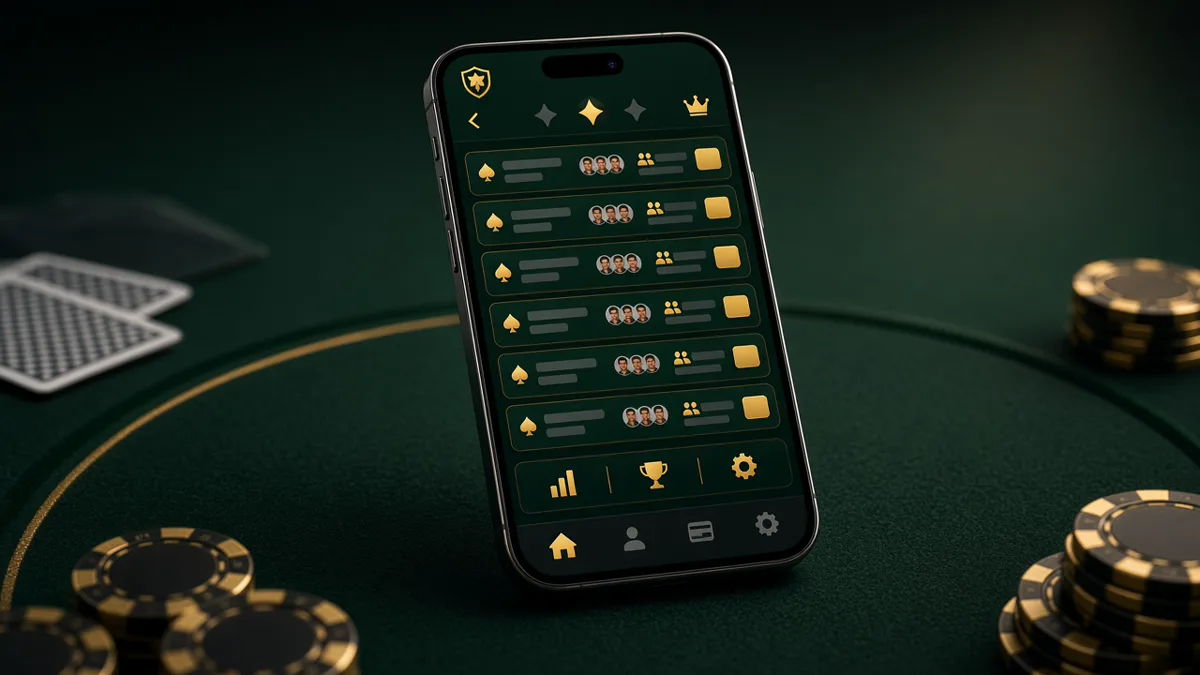
After your Grand Club application is approved, tap the club name on the home screen to open the lobby. The top tabs separate Cash Games, MTT, SNG and specialty formats. Each tab has filter buttons for stakes, table size and game type so you can narrow NLH 6-max at your level without scrolling every open room.
The search bar at the top accepts stake notation like 1/2 or 0.5/1. Tap a table row to see the current players, average pot size and whether the game is running Straddle or Bomb Pot. A green seat icon means an open chair; tap it to join the waiting list or sit directly if a seat is free.
If the lobby looks empty, check that you opened Grand Club (1074072) and not a different room, and confirm your membership status is Active in the club info panel. Union traffic peaks at different hours — Brazilian evenings and CIS late nights often fill faster than midday in other regions.
Table interface and action buttons
Once seated, your hole cards appear at the bottom with chip stacks arranged around the felt. Action buttons — Fold, Call, Raise and the bet slider — sit along the bottom edge. Drag the slider or tap preset bet sizes (half pot, pot, all-in) to size your raise; the numeric field accepts exact amounts if you prefer typing.
The dealer button, blinds and current pot display in the centre. A timer ring around your avatar shows remaining timebank; tap the clock icon in table settings to see how much reserve you have left for the session. Auto-check/fold and sit-out-next-hand toggles are in the same menu.
Multi-tabling on mobile swaps between active tables with a tab bar at the top. On Windows each table opens in its own resizable window. Avoid opening the same seat on two devices — the second login takes over and can time you out on the first.
Table settings and display options
Tap the gear icon at the table to open display and behaviour settings. Here you adjust card size, felt colour, whether to show chips in big blinds or absolute values, and sound effects for bets and alerts. Four-colour deck and rabbit hunting (showing undealt cards after a fold) are optional and club-dependent.
Betting preferences include pre-action buttons (check/fold, call any, raise any) and whether the slider defaults to pot-sized bets. Straddle and run-it-twice prompts can be set to auto-decline if you prefer not to see the popup every hand.
Theme packs purchased with diamonds change card backs and table frames. These are cosmetic only and do not affect gameplay, but they help distinguish tables when you run several at once on the desktop client.
- •Gear icon at the table → Display, Sound, Betting preferences
- •Toggle chips in BB vs absolute values
- •Pre-action buttons speed up multi-tabling
- •Four-colour deck and custom themes available
Profile, hand history and getting help
Your profile lives under the avatar icon on the home screen. It shows your numeric PPPoker ID, nickname, diamond balance and club memberships. The hand history tab stores recent sessions with expandable streets — useful for reviewing a disputed pot or studying a hand you played at Grand.
Club-level statistics (VPIP, hands played, winnings in chips) appear in the club member panel. These numbers are what managers see when checking activity requirements; they are separate from the agent-side rake records used for rakeback.
For deposits, withdrawals and account questions, message @grandppuzbot on Telegram. For player support outside the bot, contact @Grand_Poker_Reception. The in-app report button on a hand history entry flags a specific hand to club admins if you believe there was a technical error.
Frequently Asked Questions
Can I use PPPoker in Uzbek?
Yes. Select Uzbek in Settings → Language. Menus and lobby labels translate; table chat stays in whatever language players type.
Why do I not see any tables in the lobby?
Confirm you joined Grand Club (1074072) and your status is Active. Empty lobbies usually mean off-peak hours — try evenings in your region or check the MTT schedule.
How do I view past hands?
Profile → Hand History. Tap a hand to expand each street. Hands stay available for several weeks depending on club settings.
Does changing language affect my account?
No. Language is a display setting only. Your ID, chip balance and club memberships are unchanged.
Navigate the PPPoker app in your language — lobby filters, table controls, profile and hand history explained step by step.